How to save products from Instagram to buy later
Use the iOS share sheet. Open the product page behind the post, tap Share, and pick your wishlist app; the link is saved with the product’s title, brand, image and current price. That gives you a card you can read three weeks later, which a screenshot never does. Anything without a share button can still be saved by pasting the URL into the app, so posts, Reels, newsletters and Mail links all end up in the same list.
Save a product you found on Instagram, step by step
- Get to the actual product page. Tap the product tag on the post, or the link in the brand’s bio, or the sticker on a Story. You want the page with the price on it, because that is what makes the save worth having.
- Tap Share, then your wishlist app. From the in-app browser or Safari, the share sheet lists ForLater alongside Messages and Mail. One tap saves the item without leaving the app you were in.
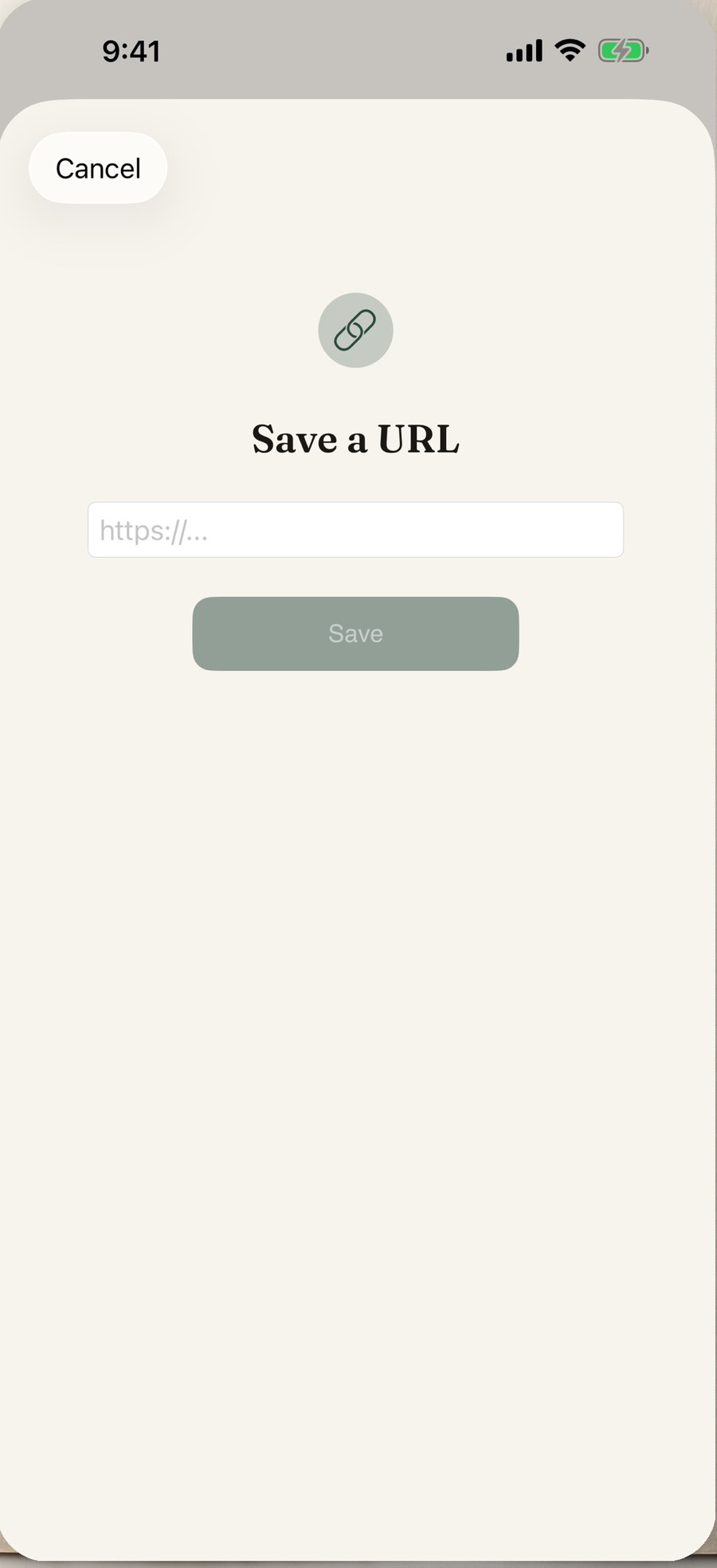
- Paste the URL when there is no share option. Copy the link, open the app, tap the plus button and paste it into the Save a URL sheet. This is the fallback for Reels, DMs, newsletters and any app with an awkward share menu.
- Add the tag while you still remember why. A single tag such as "Winter" or "Gift for Dad", plus a note if the post said something the product page does not, like a sizing tip from the comments.
- Come back through Recently Saved. Everything you added today sits in one view, which is when to tidy: fix a bad title, delete the duplicate, or decide something was a scroll-induced mistake and archive it immediately.
Why screenshots fail as a wishlist
A screenshot is a picture with nothing behind it. No link, so finding the item again means reverse-searching an image or scrolling back through weeks of a feed. No price, beyond whatever happened to be visible in the frame. No brand, if the post cropped it. And it lands in the camera roll between photos of a parking spot and a dog, where it will not be found on purpose.
The habit persists because it is fast, and speed is genuinely what matters at the moment of saving. The share sheet is just as fast and keeps the link, the price and the source. That is the whole argument.
Two taps from anywhere in iOS
Instagram, Safari, Mail, Pinterest, TikTok and every browser can hand a URL to the share sheet, so one save method covers everywhere you find things. ForLater takes the link, fetches the product’s title, brand, image and price, and turns it into a card in the same list as everything else you are considering.
For the cases with no usable share menu, the Save a URL screen takes a pasted link and does the same job. It is deliberately plain: a field, a Save button, and no upsell in the way when you are trying to get back to what you were doing.
Turning a saved link back into a decision
The point of keeping the URL is what happens later. Each saved item has a Safari button that reopens the original page, so checking size availability or reading reviews is one tap rather than a search. A refresh pulls the current price against the one recorded when you saved it, which is how you find out that the thing you saw on a Reel in April is now $76 instead of $95.
Then close it out. Mark the item bought, or archive it. Saved items sync privately across iPhone, iPad and Mac through iCloud, and none of it goes to a server belonging to the app or to the shops whose links you kept. Nothing you save tells the brand you were interested, which is a small but real difference from adding an item to a store’s own wishlist.
Questions
Can I save something I only saw in a Reel or a Story?
If the post carries a product tag or a link sticker, follow it to the shop page and share from there. If it does not, copy whatever link is available and paste it into the Save a URL sheet, then add the product name to the notes so you can search for it later.
Does saving a product tell the brand or the person who posted it?
No. The save happens on your device and syncs through your own private iCloud database, so there is no account with the shop and no third-party tracker involved. Adding an item to a retailer’s own wishlist is the version that gets you on a mailing list.